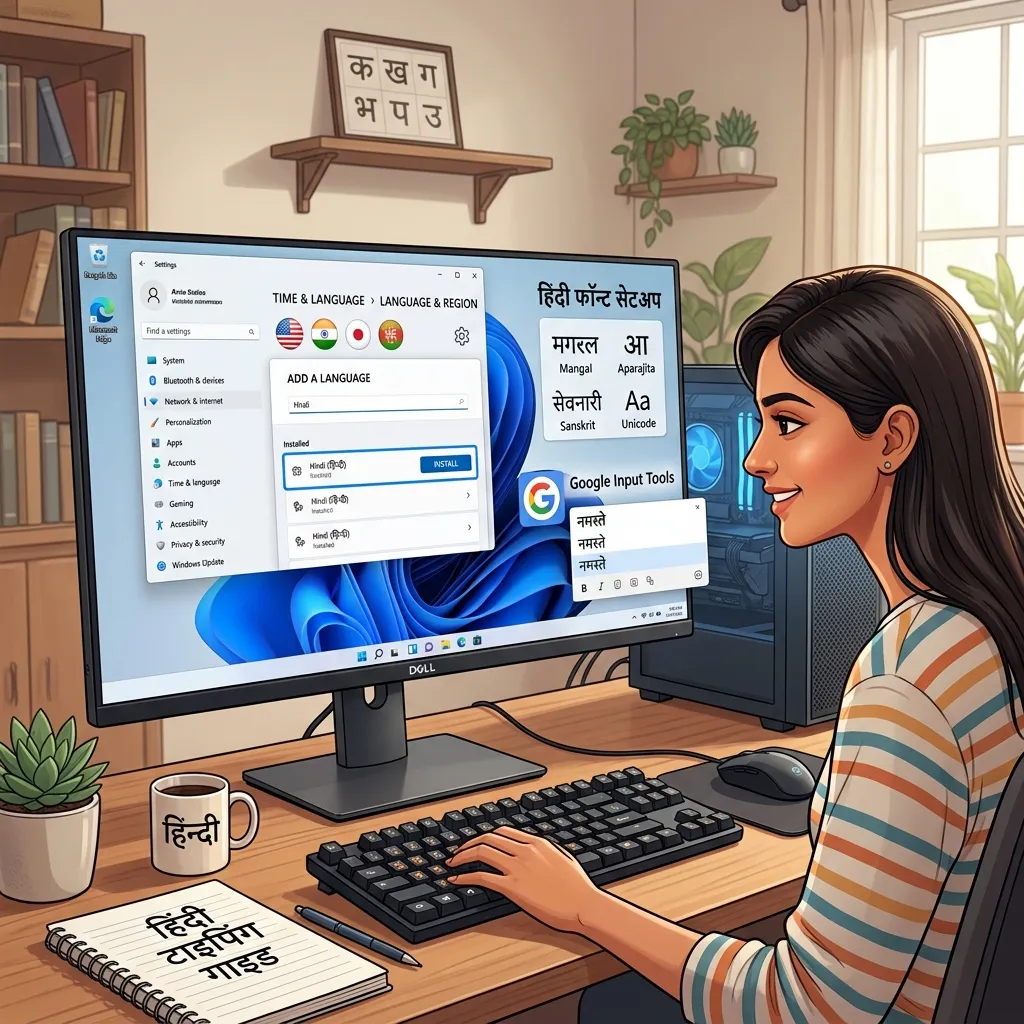
Want to type in Hindi on your PC? You need the right Hindi fonts for PC. Setting up a new Windows machine? Installing fonts for MS Word? Adding Devanagari for Photoshop? This page has every Windows Hindi font you need. Download Mangal, Kokila, Aparajita, and Google Noto Devanagari as TTF files.
Why Download Hindi Fonts for PC?
Windows 10/11 comes with Mangal. But many PCs lack creative or legacy Hindi fonts:
- Typing Documents: Install Kruti Dev or Mangal for official MS Word typing.
- Graphic Design: Download AMS and calligraphy fonts for Photoshop, CorelDRAW, and Canva desktop.
- Missing Fonts Error: Hindi document showing boxes? Your PC is missing the font. Download it from here.
How to Install Hindi Fonts on Windows 10 & 11
Four simple steps:
- Download the TTF: Click "TTF" below any font on this page.
- Install: Double-click the file. Click "Install". For multiple files, select all, right-click > Install.
- Restart App: Close and reopen MS Word or Photoshop. New fonts appear in the list.
- Enable Keyboard: Go to Windows Settings > Time & Language > Add "Hindi" to switch your keyboard.
Explore More Hindi Font Styles
- Want web-safe fonts? See Mangal Unicode Fonts.
- Need exam fonts? Download Kruti Dev 010.
- Want creative styles? Try our Stylish Hindi Font Generator.
Key Features
FAQs about Hindi Fonts for PC
How to add Hindi fonts to MS Word?
Download the TTF. Double-click it. Click "Install". Open MS Word — the font appears in the dropdown automatically.
Which Hindi font is best for PC?
Mangal for official Unicode work. Kruti Dev 010 for typing exams. Kokila (serif) and Aparajita (italic) for design variety.
Why is my Hindi font showing boxes in Word?
Boxes mean the font isn't installed on your PC. Download the missing font from this page. Install it. Text displays correctly.